
iPhone Device Presentation
Switch the phone presentation to iPhone when building Apple-focused screenshot graphics.
Create polished App Store screenshots for your iPhone app with RenderDuck. Start with an Apple-focused screenshot project, add real app screens, switch the device presentation to iPhone, choose the pose and frame style, build a consistent multi-page screenshot set, localize your copy, and export finished marketing graphics.
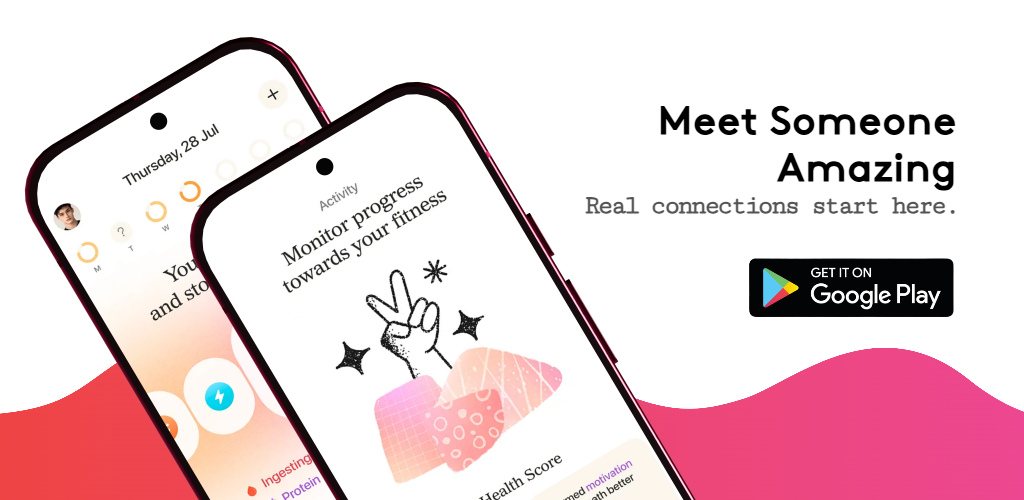
A strong App Store screenshot set should show the product clearly while guiding users through the app’s most useful features. RenderDuck keeps the device, copy, background and page sequence inside the same app-focused design workflow.
Switch the phone presentation to iPhone when building Apple-focused screenshot graphics.
Create multiple pages for one product-page campaign and keep the visual direction consistent.
Use straight or angled device presentation when the composition benefits from more depth.
Change the visual style of the screenshot campaign without manually rebuilding every page.
Adapt screenshot copy for different languages while keeping the broader layout and brand system consistent.
Review the finished screenshot sequence and export the pages you want to use in your app marketing workflow.
RenderDuck keeps the App Store workflow simple from project creation to final export.
Start a new Apple-focused app screenshot project.
Upload the real interface screenshots from your iPhone app.
Choose the iPhone pose, frame treatment, text, background and theme.
Review the finished set and download the screenshot pages you need.
The best screenshot sequence for your app depends on the product, but each page should help users understand one useful part of the experience.
RenderDuck’s 3D Phone Pose workflow lets you change the device presentation from Android to iPhone and then choose the pose and frame treatment that fits your design.
Choose the iPhone option in the 3D Phone Pose panel when preparing an Apple-focused screenshot campaign.
Use a straighter view for detailed interface presentation or a stronger angle when the device itself is part of the visual composition.
Choose a frame style that supports the screenshot background and app branding instead of competing with the interface.
Use these RenderDuck pages when you need a more specific iPhone, example, template, 3D or tutorial workflow.
Focus specifically on iPhone screenshot creation and presentation.
Open iPhone generator →Start from pre-designed screenshot directions for Apple app marketing.
Browse App Store templates →Review different screenshot layouts and sequence ideas for iPhone apps.
View App Store examples →Create realistic iPhone-based app presentation for store and marketing graphics.
Open iPhone mockup generator →Follow the RenderDuck App Store workflow step by step.
Read the guide →Create marketing graphics with stronger device perspective and depth.
Open 3D generator →An App Store screenshot generator helps turn raw iPhone app screens into designed product-page graphics with feature copy, backgrounds, device presentation and a consistent screenshot sequence.
Yes. RenderDuck supports Apple-focused screenshot projects and iPhone device presentation.
Yes. RenderDuck supports multi-page screenshot projects so you can build a complete product-page campaign instead of isolated images.
Yes. RenderDuck supports editable 3D phone presentation and iPhone-oriented poses for app-marketing layouts.
Yes. Theme switching is designed to help you change the visual direction without manually rebuilding each page.
Yes. RenderDuck supports a localization workflow for preparing screenshot copy in multiple languages while keeping the visual structure consistent.
Yes. Reusable projects make it easier to replace app screens, update copy, change a theme or prepare a new language later.
RenderDuck standard exports are designed without a RenderDuck watermark over the finished graphic.
Start an Apple-focused project, add your real iPhone app screens, customize the device and visual style, build a consistent screenshot sequence, and export polished product-page graphics.
Open App Store Screenshot Generator