Realistic Android Phones
Place the app inside a clean Android device frame so the screen feels connected to a real mobile product.

Place real Android app screens inside realistic phone and 3D device mockups for Google Play marketing, launch graphics, landing pages, client presentations and social campaigns. Control the device angle, perspective, scale, position and background while keeping the app screen as the visual focus.
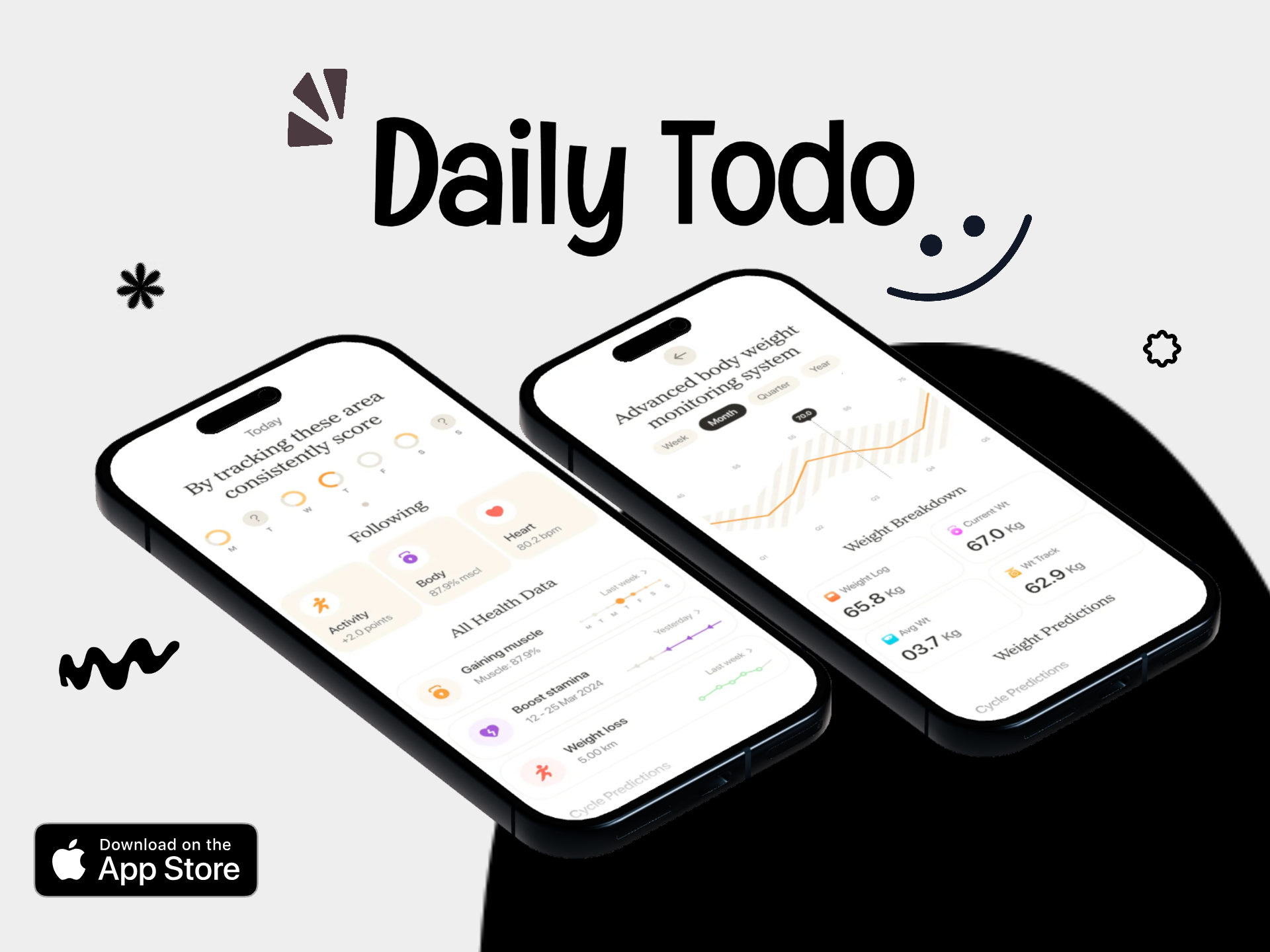
A mockup adds context and depth around the product. Start with the actual Android UI, then use the device, perspective and background to make the app easier to present in marketing materials.
Place the app inside a clean Android device frame so the screen feels connected to a real mobile product.
Rotate the phone into a more dynamic presentation and create depth for launch banners, store marketing and website visuals.
Adjust how the device faces the viewer so the app screen stays readable while the composition gains visual depth.
Use solid colors, gradients or supporting imagery that matches the app brand without competing with the device screen.
Resize and reposition the mockup to create room for headlines, feature messages or supporting visual elements where needed.
Export polished app mockups for Google Play marketing, websites, portfolios, presentations and social graphics.
Start with a real product screen and use the mockup controls only to strengthen the presentation. The device should support the app—not distract from it.
Choose a current product screen that clearly represents the feature or workflow you want to present.
Use a straightforward Android phone frame or choose a more dimensional 3D device presentation.
Shape the composition around the app screen while leaving enough visual space for branding or supporting copy.
Reuse the same mockup direction across launch graphics, website sections, social posts or store-marketing assets.
A flat phone frame can keep the app screen extremely clear, while a 3D device scene can create more depth and campaign impact.
Best when clarity matters more than visual drama.
Best when the visual needs stronger depth or launch energy.
Best when the mockup belongs to a larger visual campaign.
The same mockup project can become a reusable visual asset for product launches, landing pages, app promotion and presentations.
Use a device mockup as part of a broader branded marketing composition while keeping the app experience accurate.
Present the app inside a realistic Android device next to the product headline, benefits and primary call to action.
Build launch graphics around the product screen, phone angle and brand background for social and promotional use.
Place a newly released feature inside a focused phone mockup and reuse the asset across product and marketing channels.
Turn raw interface screens into polished visuals for demos, stakeholder reviews, agency presentations or product pitches.
Showcase the finished Android app inside clean device scenes that give design work more product context.
A screenshot graphic explains a store feature sequence. An app mockup focuses more on presenting the product inside a realistic device scene.
| Creative Need | App Mockup | Store Screenshot Graphic |
|---|---|---|
| Main focus | Device presentation and product context | Feature explanation and screenshot sequence |
| Device angle | Can use rotation and perspective | Usually more direct and readable |
| Visual depth | Can use 3D, shadows and layered scenes | Usually keeps the UI flatter and more immediate |
| Best channels | Websites, launches, social, decks and marketing visuals | Store screenshot sequences and product explanation |
| Primary goal | Make the app feel like a finished product | Help users understand specific features quickly |
Create broader Android device visuals for websites, app launches, presentations and marketing.
Create Android mockups →Create realistic phone scenes with perspective, rotation, depth and branded backgrounds.
Create 3D phone mockups →Place app screens inside clean device frames for marketing and product presentation.
Create phone mockups →Create feature-led Android screenshot sequences for Google Play store listings.
Create Google Play screenshots →Create phone screenshots, tablet screenshots, feature graphics and localized Google Play images.
Create store images →Create app mockups for both Android and iPhone product presentation.
Create mobile app mockups →It helps place real Android app screens inside realistic phone or 3D device scenes for store marketing, websites, launch campaigns and presentations.
Not exactly. A store screenshot is usually focused on explaining a feature or part of a listing sequence, while a mockup emphasizes the app inside a device presentation.
Yes. Using the real product screen helps keep the mockup accurate and useful for product presentation.
Yes. RenderDuck supports device-oriented workflows where the phone can be presented with perspective, rotation, depth and supporting background design.
Yes. Device angle, scale and position can be adjusted so the app remains readable while the overall composition fits the marketing asset.
Yes. Android app mockups are also useful for landing pages, social posts, client presentations, product launches, portfolios and case studies.
Yes. Perspective should add visual interest without making the product difficult to recognize. Keep the interface large and legible enough for the final use.
Yes. A consistent device angle, background and visual system can be reused while replacing the app screen for different features or campaign assets.
RenderDuck is designed to provide clean standard app marketing exports without placing a RenderDuck watermark over the finished graphic.
Add your real Android app screen, choose a realistic device, adjust the angle and background, and export polished app mockups for store marketing, websites, launches and presentations.
Start Creating Android Mockups