Phone-First Layouts
Keep the Android interface large enough to understand and avoid shrinking the product screen just to make room for decorative elements.

Turn real Android phone screens into polished Google Play listing graphics with portrait or landscape layouts, concise feature messages, readable mobile UI, localization support and high-quality export. Build a phone-first screenshot sequence that explains the app quickly without hiding the real product.
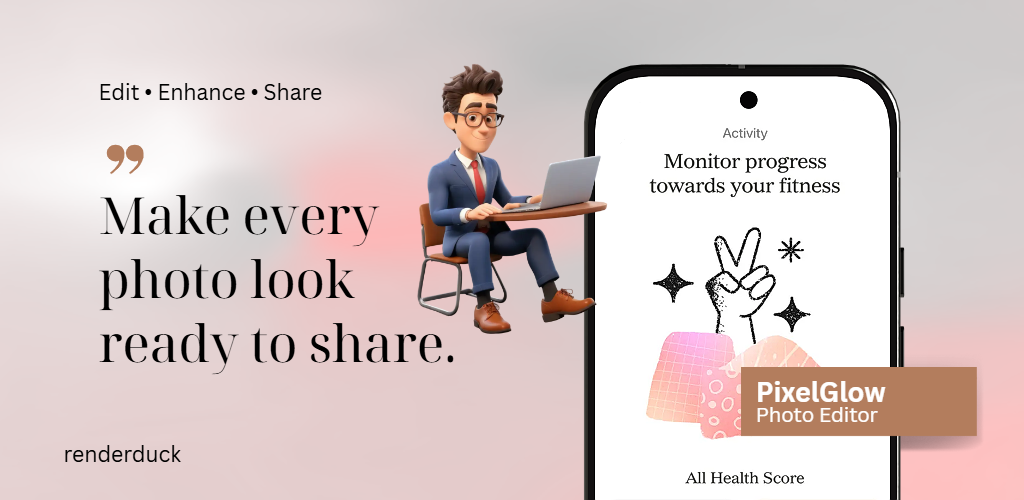
Phone screenshots need to work when users are browsing quickly on a mobile screen. Keep the real product obvious, the supporting copy short and the visual hierarchy consistent across the listing.
Keep the Android interface large enough to understand and avoid shrinking the product screen just to make room for decorative elements.
Build vertical phone screenshots for apps that naturally use portrait interaction and need feature messages above or around the real mobile UI.
Use wider assets for games, video, media, editing or other Android experiences where the real product is naturally horizontal.
Use current app screens that accurately show what users will see after installation instead of relying on abstract marketing artwork.
Add concise text only where it helps explain the product. Keep the screenshot readable when it appears at a reduced size in the store.
Reuse the same mobile design system while adapting added text and spacing for each supported language.
Start with the strongest mobile screen, keep the real app interface dominant and use the sequence to explain different user benefits one screenshot at a time.
Choose real Android UI that clearly demonstrates the app’s most important workflows and current features.
Match the screenshot orientation to the actual product experience rather than forcing every app into a vertical template.
Use short messages only when they add context. Keep the app UI more prominent than the headline or background.
Adapt added text for each market, review the current Play requirements and export crisp phone assets for the final listing.
Review the screenshot set at mobile size before uploading it to Play Console.
Current Play Console guidance includes general screenshot requirements plus higher-resolution recommendations that help apps qualify for larger screenshot-based discovery surfaces.
Current Play guidance states:
For apps shown in screenshot-based recommendation formats, Google currently recommends:
Google also recommends:
Different app categories need different ways of using the phone canvas. The strongest layouts highlight the product state that matters most instead of forcing every app into the same mockup.
Use portrait layouts to show tasks, calendars, notes or dashboards with a short headline explaining the user benefit.
Keep numbers, charts or transaction flows readable and avoid hiding important interface details inside oversized decoration.
Show progress, tracking, plans or activity screens clearly and keep supporting copy focused on the actual product experience.
Use portrait or landscape based on how playback, browsing, editing or content discovery actually works inside the app.
Use real gameplay and choose the orientation that reflects the actual game experience rather than a generic store template.
Reuse the same visual identity while adjusting copy length, line breaks and spacing for each target language.
Portrait is common for many Android apps, but landscape can be more accurate for games, video, editing and other horizontal experiences.
| Design Area | Portrait Phone Screenshot | Landscape Phone Screenshot |
|---|---|---|
| Recommended high-resolution size | 1080 × 1920 or higher | 1920 × 1080 or higher |
| Best fit | Utility, social, finance, health and many productivity apps | Games, video, media, creative tools and horizontal workflows |
| Copy placement | Often works above or around the phone UI | Usually needs more careful use of side space |
| UI visibility | Keep the primary screen large | Use the wider view to show the real horizontal experience |
| Goal | Explain the vertical mobile workflow quickly | Represent apps that naturally use a wider phone layout |
Use this page for Google Play phone screenshot creation, then move into Android, size, template, localization or broader Google Play workflows when needed.
Create a broader Android screenshot system covering phone and tablet product experiences.
Create Android screenshots →Create the full Google Play screenshot campaign across supported device categories.
Create Google Play screenshots →Review current phone screenshot dimensions, aspect ratios and upload guidance.
Check phone screenshot sizes →Start from reusable Android phone layouts and customize the screen, copy, background and brand direction.
Browse Google Play templates →Adapt added screenshot text and spacing for additional languages while preserving one visual system.
Localize phone screenshots →Create device-focused Android phone visuals for store graphics, websites and launch campaigns.
Create Android mockups →Common questions from Android developers creating phone screenshots for Google Play store listings.
It helps turn real Android phone screens into polished Google Play store listing graphics with portrait or landscape layouts, concise messaging and reusable design structure.
Current Google Play guidance allows up to eight screenshots for each supported device type.
Current general Play guidance requires at least two screenshots across supported device types.
For screenshot-based recommendation formats, Google currently recommends at least four app screenshots at minimum 1080 px resolution.
For the current high-resolution recommendation, portrait app screenshots use a 9:16 ratio at a minimum of 1080 × 1920 pixels.
For the current high-resolution recommendation, landscape app screenshots use a 16:9 ratio at a minimum of 1920 × 1080 pixels.
Yes. Google recommends screenshots that demonstrate the actual in-app experience and core features so users can understand what they will get after installing the app.
Yes, but keep it limited. Google recommends using taglines only when necessary and avoiding ranking, award, pricing and promotional claims.
RenderDuck is designed to provide clean standard app marketing exports without placing a RenderDuck watermark over the finished graphic.
Add your Android phone UI, choose portrait or landscape, customize the supporting message and export polished Google Play screenshots directly from your browser.
Start Creating Phone Screenshots