Realistic iPhone Frame
Place the app screen inside a clean iPhone device so the product immediately reads as a polished mobile experience.

Place real iPhone app screens inside realistic device mockups and create polished visuals for websites, product launches, presentations, portfolios, social posts and app marketing. Adjust device angle, perspective, position, shadows and backgrounds while keeping the app screen clear and recognizable.
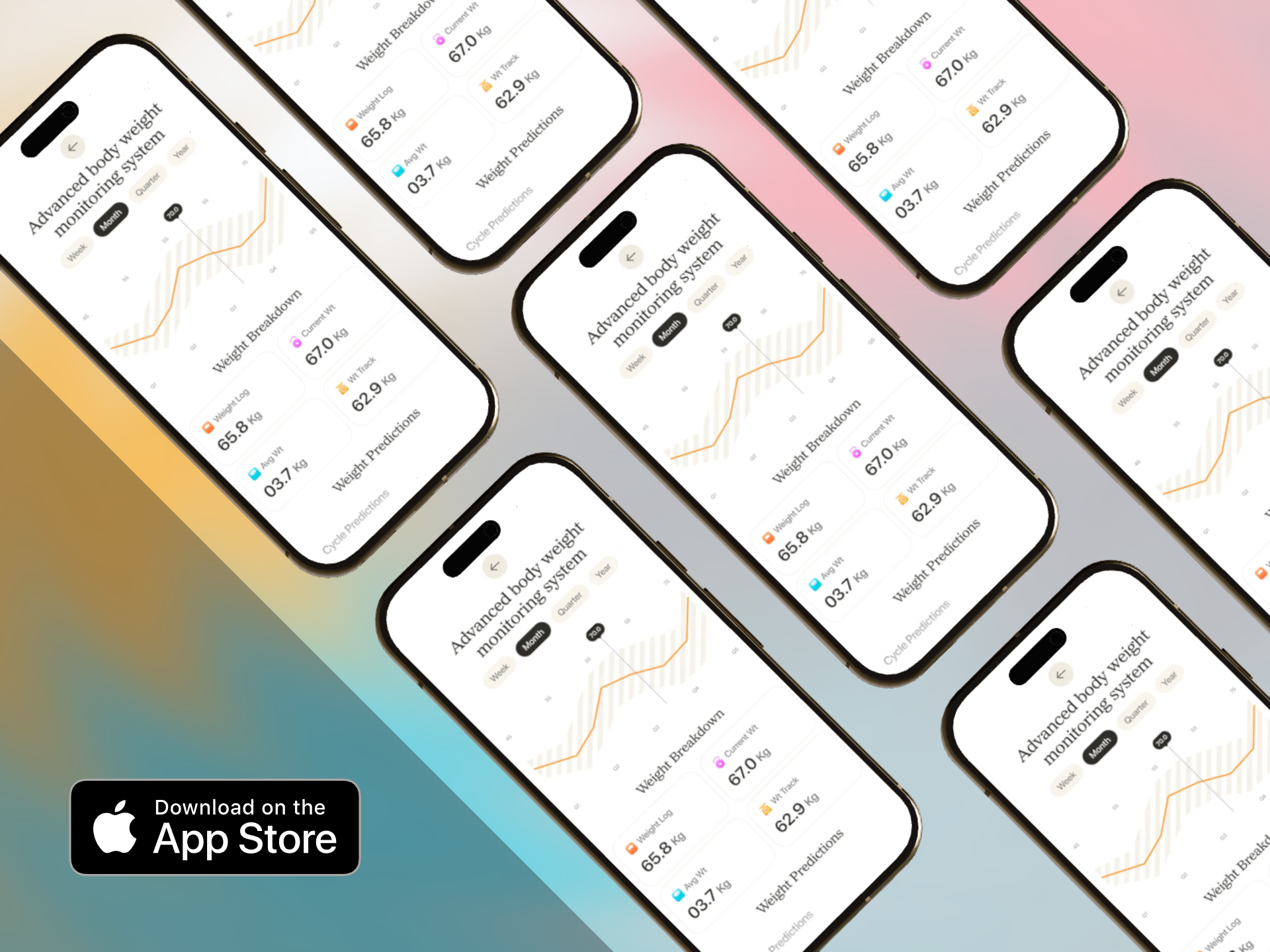
A strong iPhone mockup should make the app feel like a finished product. Keep the screen accurate, then use the device and scene controls to create depth, context and brand consistency.
Place the app screen inside a clean iPhone device so the product immediately reads as a polished mobile experience.
Rotate the device to create an angled, dimensional phone presentation for launch graphics, hero sections and product banners.
Adjust how the iPhone faces the viewer while preserving enough screen readability for the product to stay clear.
Add depth beneath the phone with editable shadow treatment that fits the background and overall scene.
Use clean colors, gradients or supporting artwork to create a scene that matches the app brand without overpowering the screen.
Export polished iPhone mockups for websites, launch graphics, presentations, social media and other app marketing uses.
Start with the real product screen and use the device scene to strengthen the presentation instead of hiding the app behind decoration.
Choose a real current screen that clearly communicates the product or feature you want to present.
Use a straight-on iPhone for clarity or a 3D angle for a more dynamic product presentation.
Build depth around the device while keeping the screen readable and the overall composition balanced.
Reuse the mockup style across websites, app launches, social posts, portfolios, presentations and campaign graphics.
Use a direct phone frame when clarity matters most, an angled scene when you want more depth, or a floating device treatment for launch-focused creative.
Best when the app screen must remain highly readable.
Best when the visual needs more depth and movement.
Best for premium-looking campaign visuals and product reveals.
A consistent mockup direction can support the app website, product launch, social campaign and presentation without recreating the device scene every time.
Place the iPhone next to the product headline and call to action so visitors can immediately see the app interface.
Use a stronger angle, shadow and background treatment to create a launch visual that feels more dimensional than a flat screenshot.
Replace the app screen inside the same device scene when a new feature needs a dedicated announcement visual.
Use the iPhone mockup as the focal point of a square, portrait or landscape promotional graphic.
Turn raw iOS interface screens into polished product visuals for clients, investors, teams and stakeholders.
Present completed app screens inside consistent iPhone device scenes to make design work easier to evaluate.
An App Store screenshot is optimized for a store listing sequence. An iPhone mockup is a broader marketing asset where the device angle, scene and presentation style can play a much larger role.
| Creative Need | iPhone App Mockup | iPhone App Store Screenshot |
|---|---|---|
| Main focus | Product presentation inside a device | Store listing feature explanation |
| Device angle | Can use 3D rotation and perspective | Usually more direct and readable |
| Scene depth | Can use shadows, layered backgrounds and floating scenes | Usually keeps the app screen more immediate |
| Best channels | Websites, launches, social, presentations and portfolios | App Store product pages |
| Primary goal | Make the app feel like a finished product | Help store visitors understand features quickly |
Create broader iPhone device visuals for websites, presentations and app marketing.
Create iPhone mockups →Create more dimensional iPhone scenes with perspective, angle and depth.
Create 3D iPhone mockups →Create device-based presentation graphics across broader phone mockup workflows.
Create phone mockups →Create iPhone-specific App Store screenshot sequences around real iOS UI.
Create iPhone screenshots →Create app mockups across iPhone and iPad product presentation workflows.
Create iOS app mockups →Create floating device scenes for launches, hero graphics and product campaigns.
Create floating mockups →It is a design tool for placing real iOS app screens inside realistic iPhone device scenes for websites, launches, presentations, portfolios and marketing graphics.
Yes. RenderDuck supports device-based workflows with rotation, perspective and depth so the iPhone can be presented at an angle instead of only front-facing.
Yes. Device rotation and perspective can be adjusted to create front-facing, angled or more dimensional product scenes.
Yes. Shadows can be used to add visual separation and depth around the device while keeping the scene realistic.
Yes. Use clean colors, gradients or supporting artwork that fits the app brand and keeps the iPhone screen easy to recognize.
Yes. Using a current real app screen keeps the mockup accurate and makes the visual more useful for product and marketing communication.
No. App Store screenshots are listing assets designed around store browsing, while iPhone mockups are broader device-presentation graphics for websites, launches, social media and presentations.
Yes. Keep the same device angle, shadow and background system while replacing the screen to create a consistent series of marketing visuals.
RenderDuck is designed to provide clean standard app marketing exports without placing a RenderDuck watermark over the finished graphic.
Add your real iOS screen, choose a realistic iPhone device, adjust the angle, perspective, shadow and background, and export polished app mockups for websites, launches, presentations and marketing.
Start Creating iPhone Mockups