Screenshot Sequence Planning
Organize the listing so the strongest value appears early and each later screenshot adds a new reason to understand or try the app.

Build App Store and Google Play listing screenshots around real product screens, clear feature messages, device mockups and a consistent visual sequence. Create one reusable listing system that is easier to update, localize and adapt across platforms.
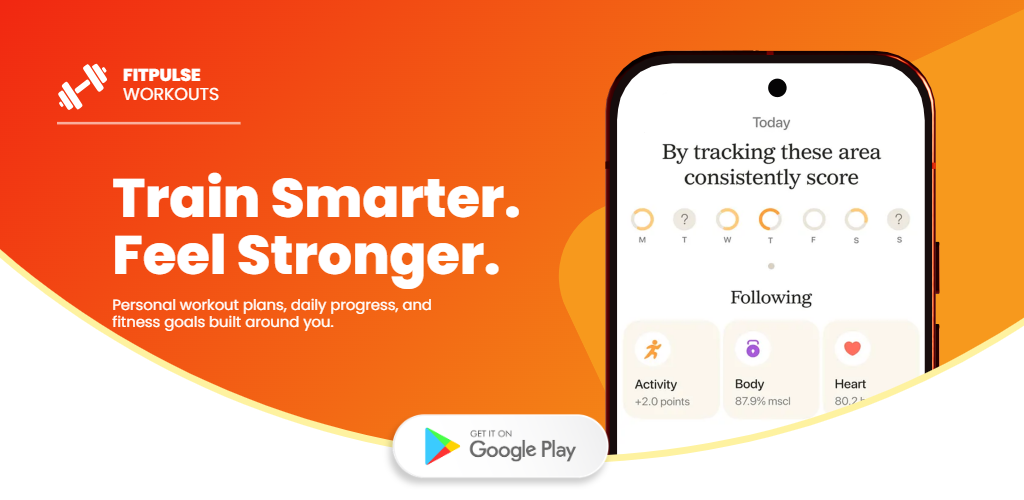
A strong app listing uses the screenshot sequence to guide someone through the product. The first slide establishes the main value, later slides expand on important workflows, and the visual system keeps the whole listing easy to recognize.
Organize the listing so the strongest value appears early and each later screenshot adds a new reason to understand or try the app.
Use authentic app screens as the visual evidence behind the marketing message instead of relying only on decorative graphics.
Write short messages that explain the user benefit shown by the screen instead of simply repeating interface labels.
Reuse typography, color, spacing and device treatment across the complete set so the listing looks intentional rather than assembled slide by slide.
Reuse the same structure across markets while adjusting caption length, spacing and layout balance for translated copy.
Keep the project direction reusable so future product updates can replace screens and copy without rebuilding the full listing from zero.
Treat the screenshot set as a progression. The first few frames should establish the main reason to care, while later frames can explain deeper workflows and supporting features.
Identify the clearest user outcome or strongest app benefit that deserves the opening screenshot.
Select a product screen that provides visible evidence for the claim instead of using a generic interface capture.
Assign each additional screenshot a different workflow, benefit or product differentiator so the listing keeps moving forward.
Keep typography, device framing, spacing and background logic consistent while changing the product story on each slide.
The exact screenshot count and composition can vary, but the creative should make the core product story easy to understand without requiring every slide to look identical.
App listing creative is not a one-time asset. The same screenshot system can support a launch, redesign, feature release, localization project or store-listing refresh.
Establish the first visual story around the strongest product outcomes and build a reusable listing system from the beginning.
Keep the app the same while updating the messaging, order or visual treatment when the existing listing no longer reflects the product clearly.
Replace outdated interface screenshots and rebuild the product story around the new UI and updated user experience.
Add a new screenshot or change the sequence when an important feature needs more visibility in the listing.
Reuse the visual structure for another market while changing captions and adjusting layout balance for translated content.
Produce alternate opening messages, sequence orders or visual treatments while keeping the underlying product evidence consistent.
The exact order depends on the app, but the sequence should move from the broad value proposition into important workflows and supporting benefits.
| Listing Position | Useful Focus | Common Mistake |
|---|---|---|
| Opening screenshot | Core user outcome | Starting with a minor feature |
| Early sequence | Main workflows and differentiators | Repeating the same message |
| Middle sequence | Supporting product capabilities | Showing dense UI without context |
| Later sequence | Additional use cases or secondary benefits | Introducing the core value too late |
| Whole listing | Consistent visual identity | Changing styles on every slide |
Use this page when the screenshot sequence and listing story are the main intent, then move to a more specific platform or optimization workflow when needed.
Create broader app screenshot campaigns across App Store, Google Play and multiple presentation styles.
Open app screenshot generator →Create Android phone and tablet listing graphics with a Google Play-focused workflow.
Create Google Play screenshots →Create iPhone and iPad screenshot campaigns with an App Store-focused workflow.
Create App Store screenshots →Plan screenshot messaging, ordering and visual consistency as part of a broader store-listing strategy.
Explore listing optimization →Reuse the same screenshot system while adapting captions and spacing for additional markets.
Localize screenshots →Start from reusable store-listing layouts and customize them around your own product story.
Browse templates →Common questions from developers and marketers building App Store and Google Play listing screenshot campaigns.
An app listing screenshot generator helps turn raw product screens into a coordinated store-listing sequence with captions, device presentation, brand styling and reusable layouts.
Yes. You can establish one visual direction and adapt it for iOS and Android store-listing campaigns.
In most cases, each screenshot should contribute something new to the product story, such as a different workflow, benefit or differentiator.
Use the opening screenshot for the strongest user outcome or core product value, supported by enough real interface to make the message credible.
Yes. Device mockups can help organize the composition when they support the real app UI and do not make important interface details too small.
Yes. A reusable listing system can be adapted to additional languages while adjusting caption length, spacing and layout balance.
Yes. Keeping the visual system reusable makes it easier to replace outdated product screens and revise the messaging without rebuilding the entire campaign.
Yes. RenderDuck also supports a dedicated 3D screenshot workflow for selected slides or marketing assets that need stronger depth and device perspective.
RenderDuck is designed to provide clean standard app marketing exports without placing a RenderDuck watermark over the finished graphic.
Add your app screens, plan the listing sequence, customize the message and export a polished App Store or Google Play screenshot campaign directly from your browser.
Start Creating Listing Screenshots