iPhone Screenshots
Create mobile-first iOS graphics around real app screens, clear product hierarchy and concise feature messaging.

Turn real iOS app screens into polished visuals for App Store listings, websites, launch graphics, client presentations, product pages and social campaigns. Build iPhone and iPad screenshots in portrait or landscape, add concise supporting copy, localize the design and export high-quality assets from one reusable visual system.
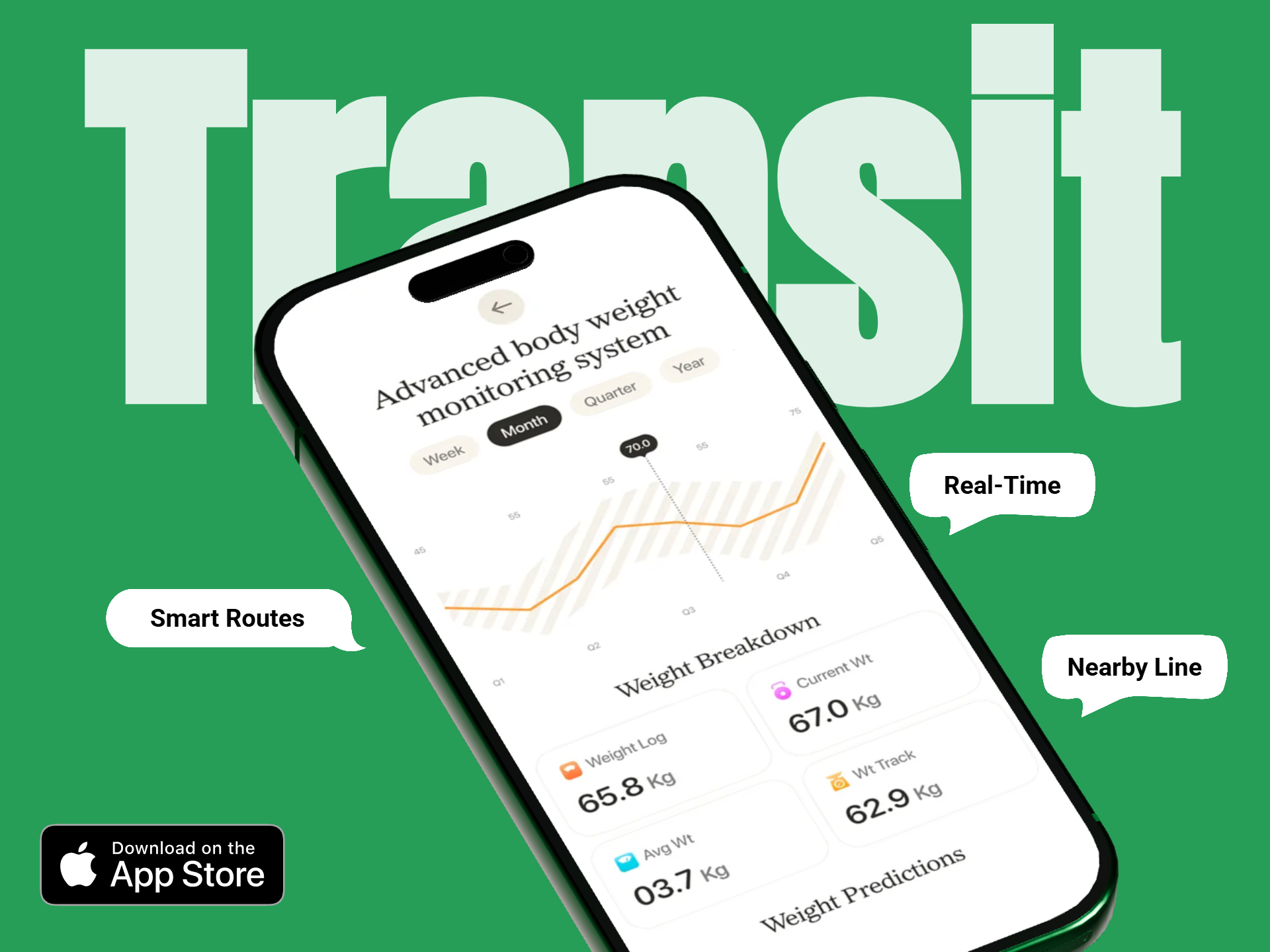
Build a consistent screenshot system once, then adapt it to different Apple devices and marketing channels while keeping the real product screen at the center.
Create mobile-first iOS graphics around real app screens, clear product hierarchy and concise feature messaging.
Build large-screen visuals around genuine iPad UI, sidebars, wider content areas and multi-panel product experiences.
Add short product or benefit messages while keeping the interface readable enough to understand at a glance.
Use clean colors, gradients and visual accents that connect the screenshot set without competing with the iOS UI.
Adapt screenshot copy and product screens for additional App Store languages or market-specific launch campaigns.
Export crisp graphics for App Store Connect and reuse the same product presentation in websites, decks and launch campaigns.
Start from the real product experience, create one visual direction and adapt it by device and channel instead of designing every graphic from scratch.
Select current iPhone or iPad screens that communicate the strongest user workflows and product benefits.
Use iPhone or iPad and choose portrait or landscape according to the actual app experience and destination asset.
Use concise copy, backgrounds and spacing that strengthen the product screen without turning the asset into a generic ad banner.
Prepare App Store assets in the correct current dimensions, then reuse the same visual direction for launch and marketing graphics.
For App Store submission, Apple’s current screenshot reference includes modern iPhone and iPad device groups, exact accepted resolutions and automatic scaling behavior.
Once the iOS visual system is established, the same product screens can support store listings, website sections, product launches and stakeholder presentations.
Create a feature-led screenshot sequence for iPhone and iPad using current App Store Connect device requirements.
Reuse iOS screens in clean website visuals that explain the app next to product copy and calls to action.
Turn the strongest iPhone or iPad screens into launch graphics for announcements, social posts and landing pages.
Show a newly released iOS feature in a focused screenshot design and reuse it across product and marketing channels.
Transform raw interface captures into clear presentation visuals for stakeholders, clients, agencies and product reviews.
Use translated copy and localized app screens for different markets while preserving the same visual identity.
This page covers the full iOS screenshot workflow across store and marketing channels, while the dedicated App Store page focuses more narrowly on App Store product-page submission.
| Creative Need | iOS Screenshot Generator | App Store Screenshot Generator |
|---|---|---|
| App Store submission | Supported | Primary focus |
| Website graphics | Primary use case | Secondary |
| Launch graphics | Primary use case | Secondary |
| Client presentations | Supported | Not the core intent |
| Current App Store size guidance | Included | Deeper focus |
Create submission-focused iPhone and iPad screenshot sets for App Store Connect.
Create App Store screenshots →Create iPhone-specific screenshot graphics around real mobile iOS UI.
Create iPhone screenshots →Create genuine large-screen iPad visuals for App Store listings, websites and marketing.
Create iPad screenshots →Place iOS screens inside realistic iPhone and iPad device mockups for product presentation.
Create iOS mockups →Review current iPhone App Store screenshot groups and accepted dimensions.
Check iPhone sizes →Adapt screenshot copy and app screens for additional languages and markets.
Localize iOS screenshots →It helps turn real iPhone and iPad app screens into polished visuals for App Store listings, websites, launches, presentations and app marketing.
Yes. The same product screens can be reused in website sections, landing pages, launch campaigns, social posts, decks and case studies.
Yes. Use separate compositions when the iPad interface or product experience differs meaningfully from iPhone.
Apple currently allows one to ten screenshots for supported App Store screenshot groups.
Current App Store Connect guidance supports JPEG, JPG and PNG screenshots without alpha channels or transparency.
Apple’s current screenshot reference includes the 6.9-inch iPhone display group with multiple accepted exact portrait and landscape resolutions.
If the app runs on iPad, Apple currently requires screenshots for the 13-inch iPad group.
Yes. Apple states that highest-resolution screenshots can scale down to smaller device sizes when the user interface is the same.
RenderDuck is designed to provide clean standard app marketing exports without placing a RenderDuck watermark over the finished graphic.
Add real iPhone or iPad screens, build a clean visual system, localize the copy and export polished iOS graphics for App Store listings, websites, launches and presentations.
Start Creating iOS Screenshots