
Can I create both Play Store and App Store screenshots?
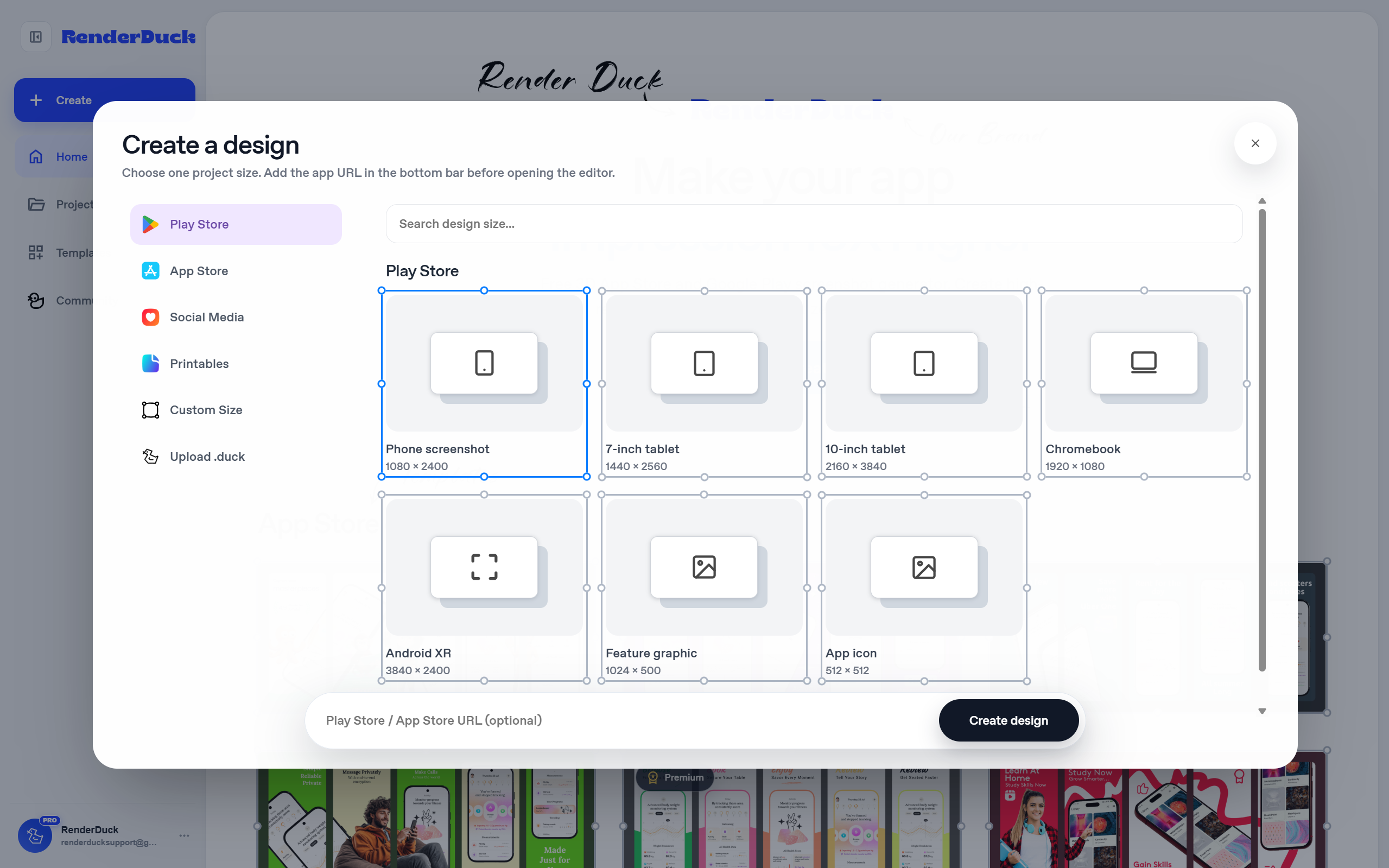
Yes. The project creation screen includes separate Play Store and App Store categories.
Create a RenderDuck project, add your real app screenshot, customize the design, and export the finished graphics for your app marketing.
Create Your ScreenshotStart by choosing the type of design you want to create. RenderDuck lets you choose Play Store, App Store, Social Media, Printables, Custom Size, or open an existing project.
Choose the correct phone or tablet size before starting so your project matches the output you want.
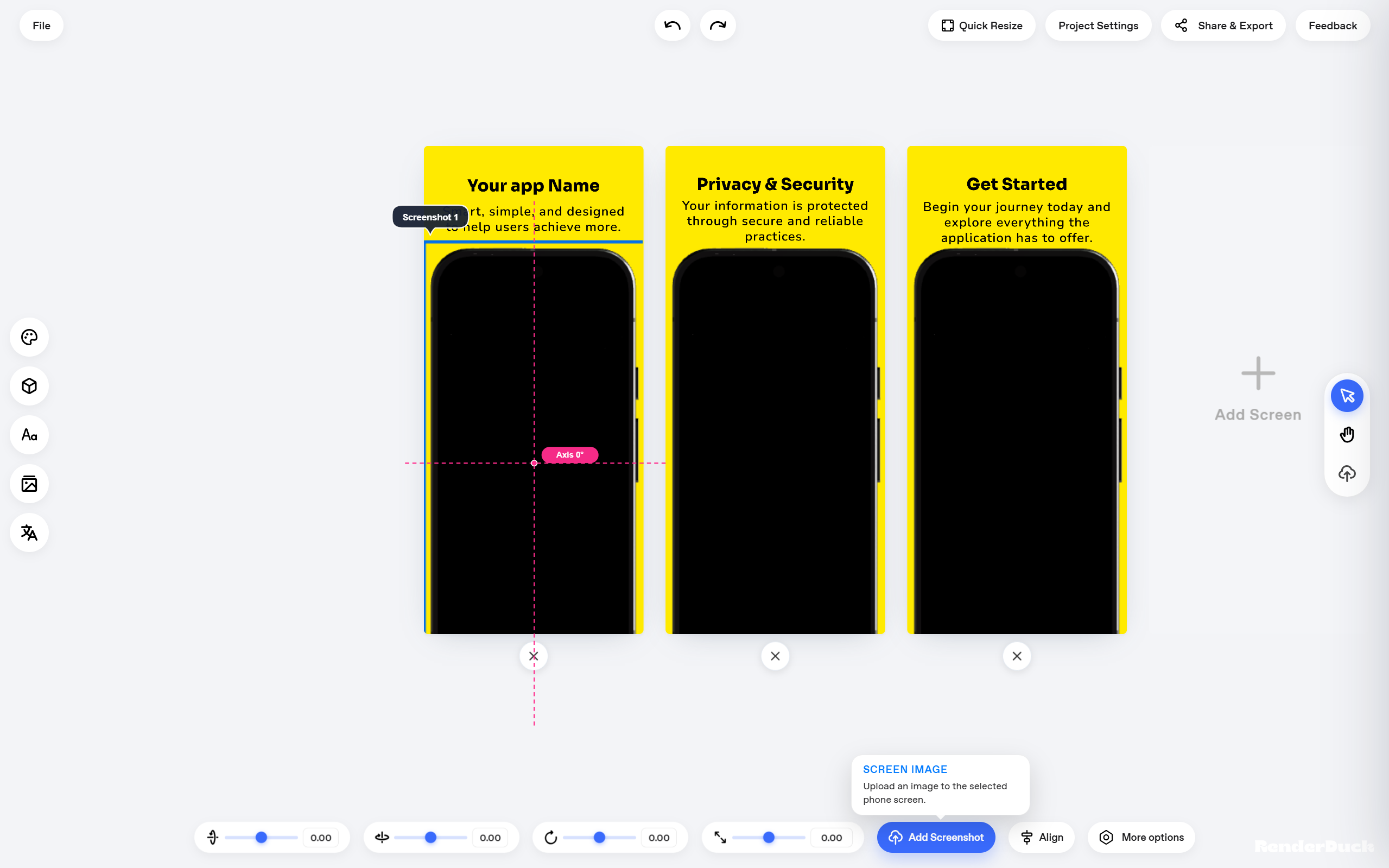
Inside the editor, select the phone or screen area where your app image should appear. Then use Add Screenshot to upload your real app screen.
Keep each screenshot focused on one clear feature or benefit so users can understand the app quickly.
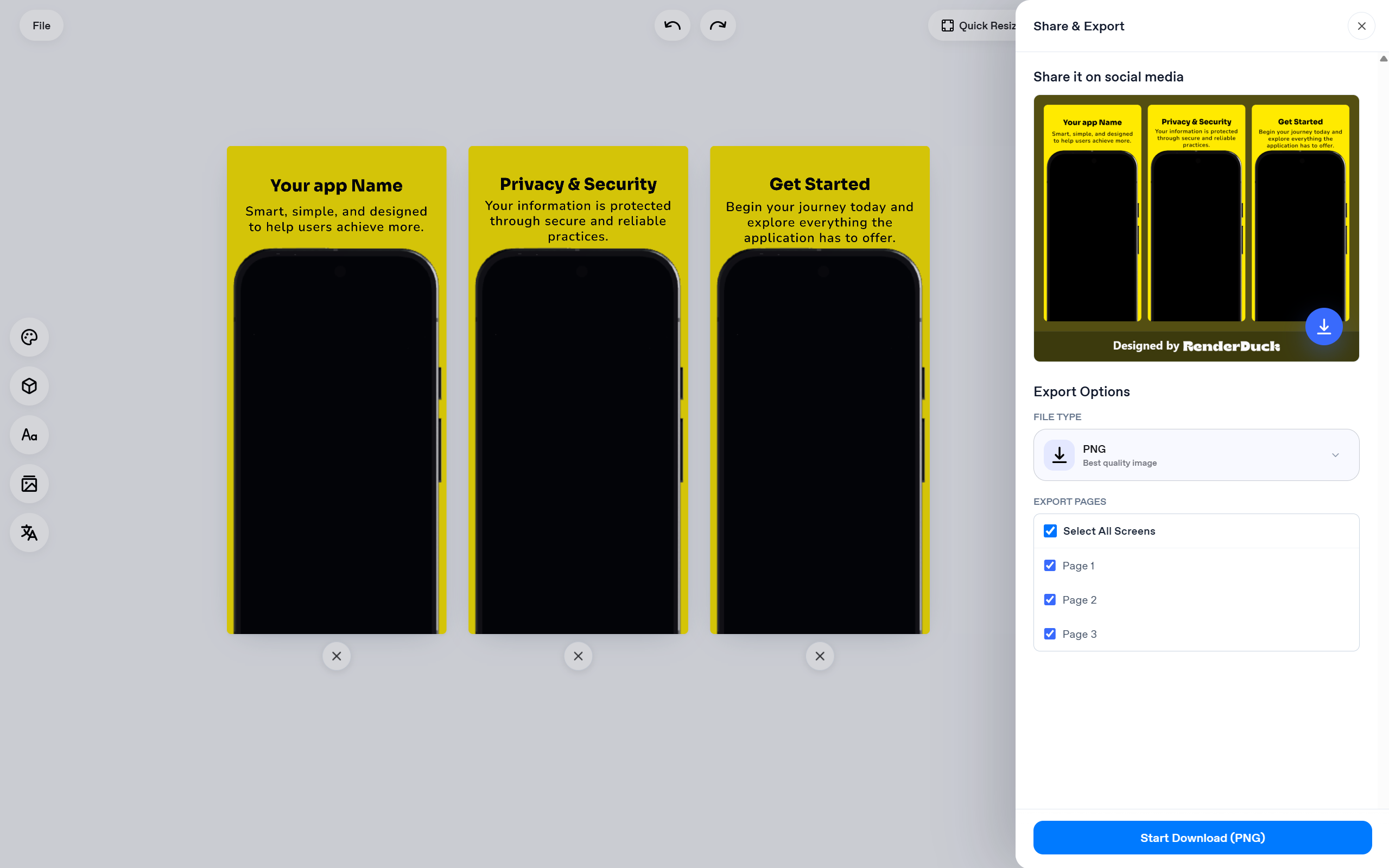
When your design is ready, open Share & Export. Select your export format and choose which screens you want to download.
Before exporting, review every page for text spacing, screenshot alignment and consistency.
That is the full workflow: create the project, add your app screenshots, customize the design, and export the pages you need.
Create App ScreenshotsQuick answers for the basic RenderDuck screenshot workflow.
Yes. The project creation screen includes separate Play Store and App Store categories.
Yes. The editor supports multiple screens so you can build a complete screenshot sequence.
Yes. The Share & Export panel lets you select all screens or individual pages.
Yes. The export screen shown in this guide includes PNG as an available file type.